Showing posts with label M3 MT. Show all posts

Feb 5, 2023

Trigger Infor ION Workflow from an external application

 It is a very common scenario to integrate/trigger your workflow with an external application. With the help of ION APIs, we can do this.

The Context


Infor ION WF

Firstly, let’s create a very simple WF which will send a notification to the user.

  1. Login to the ION Desk.
  2. Go to the Workflows menu in the Monitors and Workflows section. Then, Add New Workflow
  3. Give it a name “KG_WF_TriggerFromApp” and fill in the Description if you want.
  4. Click on the Start Icon in the WF designer canvas to see the Workflow properties. Add below two parameters.

    Name Type Input
    PurchageOrderNo STRING YES
    SourceApp STRING YES


  5. Drag and Drop the Notification function between Stat and End of the workflow. Provide the following configuration in the Notification Properties section.
    1. In the Notification Tab,
      1. Give it a name.
      2. Enter the message, like “You have received a purchase order from [SourceApp]”. You can select the parameter SourceApp by hitting CTRL+SPACE in the message text box. 
    2. Go to the Content tab and select the two parameters we created from the left table and add them to the right table. This is to include values of parameters in the notification. 


    3. Go to the Distribution tab and add the User to be notified.


  6. Save the WF and activate it. 

Infor ION API

Infor ION API provides a POST API under IONProcessApplicationServer to start a workflow. The API has two required parameters;

  1. logicalId -to differentiate the application.
  2. StartWorkflowJSONBody – to specify WF Name, instance, input variables and structures.

Invoking the API

In this example, I’m using the Postman client to mimic the external call. Refer to my post to configure the Postman to call ION APIs

  1. Create a new POST request in the Postman client.
  2. Paste the API endpoint from the ION API documentation. The URL is similar to  https://[ Your CloudSuite URL and Tenent ]/IONSERVICES/process/application/v1/workflow/start .
  3. Add a Query Parameter as


  4. Go to the Body tab and add the following JSON payload and Send.


The Output

  1. Postman response.


  2. Workflow instance from the ION Desk.


  3. The Notification in my Inbox.


Dec 12, 2022

How to configure Postman to call Infor ION API

In this post, I'm going to explain the step-by-step approach to configuring the popular development tool Postman to test/execute Infor ION API. Even though this is straightforward, better to have a document to do quickly whenever you need it, to save time. 

As you know Infor ION APIs use OAuth2.0 (The OAuth 2.0 Authorization Framework) for authorization and Bearer Tokens which are the predominant type of access token.

Configuration from the Infor ION API

Create Postman as Authorized Apps in Infor ION.

Note: To complete the below steps you must be in the IONAPI-Administrator security role.
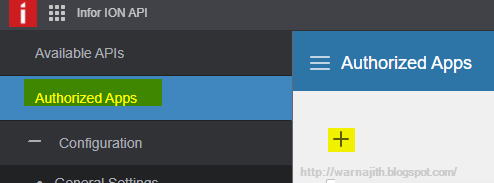
  1. Goto Infor ION API -> Authorized Apps
  2. Click on  + icon on the left top (Add New App)


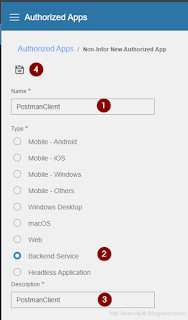
  3. Give it a name, description select type as "Backend Service", then Save 

  4. After save, we can see additional information like, Client ID, Secret, Associated Events etc. 
  5. Click on the Download Credentials button (next to the Secret text box).
  6. In the Download Credentials Dialog, toggle on the Create Service Account.
  7. Select a user from the Full Name text box. This is required because we are configuring this as Backend service and need impersonation. Or You will get Illegal impersonation attempt (error: 163) error. 


  8. A file will be created(eg. PostmanClient.ionapi) and downloaded to your local Download folder. After you download, store these credentials securely. 
If you open the file, can see it is a JSON file and contains several properties.  Infor API Admin guide defines those properties as follows;
  
PropertyDescription
tiTenant identifier
cnApplication name
ciClientID that must be passed to the Authorization
csServerClient Secret to pass to the Authorization Server
iuBase URL for calling the ION API Gateway for this tenant/environment
puBase URL for calling the authorization server for this tenant/environment
oaPath to append to "pu" to create the Authorization URL
otPath to append to "pu" to create the Access Token URL
orPath to append to "pu" to revoke a previously obtained token
SAAKService Account Access Key
SASKService Account Secret Key

Configuration in Postman

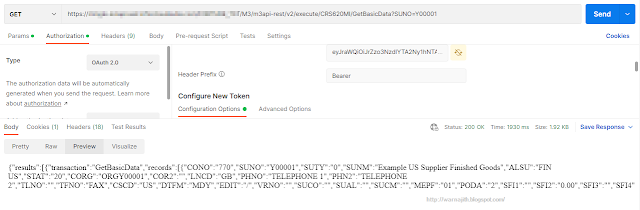
  1. On the Authorization tab in the Postman, select Type as OAuth 2.0


  2. On the right-hand side , under the Configure New Token-> Configuration Options, enter parameter values as below.  
  3. Token NameName it as you want
    Grand TypePassword Credentials
    Access Token URL value of "pu"+"ot" from the .ionapi file
    Client IDvalue of "ci" from the .ionapi file
    Client Secretvalue of "cs" from the .ionapi file
    Usernamevalue of "saak" from the .ionapi file
    Passwordvalue of "sask" from the .ionapi file
    Scope[blank]
    Client AuthenticationSend as Basic Auth header

  4. Click on the Get New Access Token button. 
  5. You will the success mesage like this.
  6. In the next window, click on the Use Token
  7. Now Postman client is ready to call Infor ION API.


Sep 1, 2019

Moving to The Cloud

Infor M3 has taken the approach to move into the cloud by releasing  major version of M3 Cloud Edition (M3 CE) in early 2018. With this release Infor is encouraging customers to move as well, highlighting the key benefits that they are gaining.

M3 Big Picture
M3 Big Picture (courtesy  of Infor)

Key Highlights


  • Single Version 
    • You will always have one version across your environments. 
    • Incremental developments.
    • Continuous delivery of new features. 
    • To stay "Super Current".
  • Automatic Updates
    • No more upgrades. You will receive recent updates automatically to make sure the system is up-to-date. 
    • Controlled through Toggles and Parameters not to have impact on existing business processes.  
  • Scalable
    • As it is in the cloud, by nature, we don't have to worry about the load of the system. We can scale the system to fit into out load. 
  • Secure
    • Infor is making sure the security factor by implementing 3 SD concepts. 
    • Secure by Default.
    • Secure by Design. 
    • Secure by Deployment.
  • Extensible 
    • Ability to extends existing feature to suit your needs. 
Having said that, practically you will have challenges when providing the solution. For an example, you know the relationship between the hammer and the nail. depending on size of the nail, you have to choose the type or size of the hammer. Like wise, our solutions has to be adjusted accordingly the Cloud concepts. 

However, as the time moves on,  Infor M3 CE will mature to the level where these challenges become insignificant.  

Single Tenant Vs Multi Tenant

In the Cloud, we are talking about Multi-Tenancy.  In short, Multi Tenant is, the System is shared with multiple organizations(tenants), as shown in below diagram.

Single-Tenant Vs Multi-Tenan
Single-Tenant Vs Multi-Tenant (Courtesy of  https://www.peoplefluent.com/blog/learning/single-tenant-lms-vs-multi-tenant-lms-security)
For M3 same multi-tenant (MT) principle applies and separation is based on the Tenant ID. The individual organization will have separate Tenant ID, which make sure no overlapping will happens with other tenants.

M3 Solutions for The Cloud

As we are more used to providing solution for M3 On-prem or Single Tenant, working with MT environment may be a paradigm shift. Because, We have to work with the certain constrains, selective technology and tools. 

For an example, we cannot run SQL commands, we used to execute in On-prem version, in MT environment. For me it is hard to work without SQL (similar to the feeling that my both hands were tied and ask to develop) , but due to this constrain I have to think about differently.  

What is next

M3 world is changing and Infor is investing in M3.  We should be ready.

I'm planning publish few posts with regards to M3 MT technical solution in future.


MEC: How to Set Message Counter for EDI Message

When you sending/creating EDI messages it is necessary to include unique message interchange number. This is to ensure each message that we ...